
Beginner's guide
New User Guide: How to Set Up Two-Factor Authentication (2FA) on Bitget EU
Beginner
2026-05-22 | 5m
Bitget EU prioritises the security of your digital assets. In today’s dynamic financial landscape, safeguarding your account requires more than just a strong password. This comprehensive guide walks new users through configuring Two-Factor Authentication (2FA)—an industry-standard authentication measure for CASP accounts in the EU.
By enabling 2FA on Bitget EU, you add an important layer of verification that helps reduce the risk of unauthorized access, even if your password is compromised. Whether you are placing your first trade or managing a growing portfolio, setting up 2FA adds more layers of verification to help keep your funds under your control.
Account Security: The Bedrock of Safe Trading
Robust account security is the foundation of a safe digital asset trading experience. Upon initial sign-up on Bitget EU, your profile is assigned a basic security tier by default (as illustrated below). You may receive automated system prompts reminding you to strengthen your account verification.Fortunately, upgrading your account verification is simple and only takes a few minutes. Enabling 2FA gives your account stronger verification on our regulated platform.
Understanding Two-Factor Authentication (2FA)
Two-Factor Authentication (2FA) is a critical authentication protocol that requires secondary verification, in addition to your standard password, before account access or withdrawals are authorized. By requiring two separate forms of verification, 2FA significantly reduces the risk of unauthorized access.
On Bitget EU, Google Authenticator is the officially supported and recommended 2FA method.
Note: If you register your account using an email address, basic email verification is already enabled by default
as an initial step.
Why Use Google Authenticator?
Google Authenticator is a dedicated mobile security application that generates time-based, one-time passwords (TOTP) for 2FA. It is widely recognized as an industry-standard tool for cryptocurrency exchange account authentication.
Because these passcodes refresh every 30 seconds, it provides a strong layer of protection. Even in the unlikely event that your password is compromised, it becomes much harder for malicious actors to access your Bitget EU account without physical possession of your smartphone to retrieve the active code.
Step-by-Step Guide: How to Set Up Two-Factor Authentication (2FA) on Bitget EU
Follow the steps below to link Google Authenticator to your Bitget EU account and strengthen your account verification.
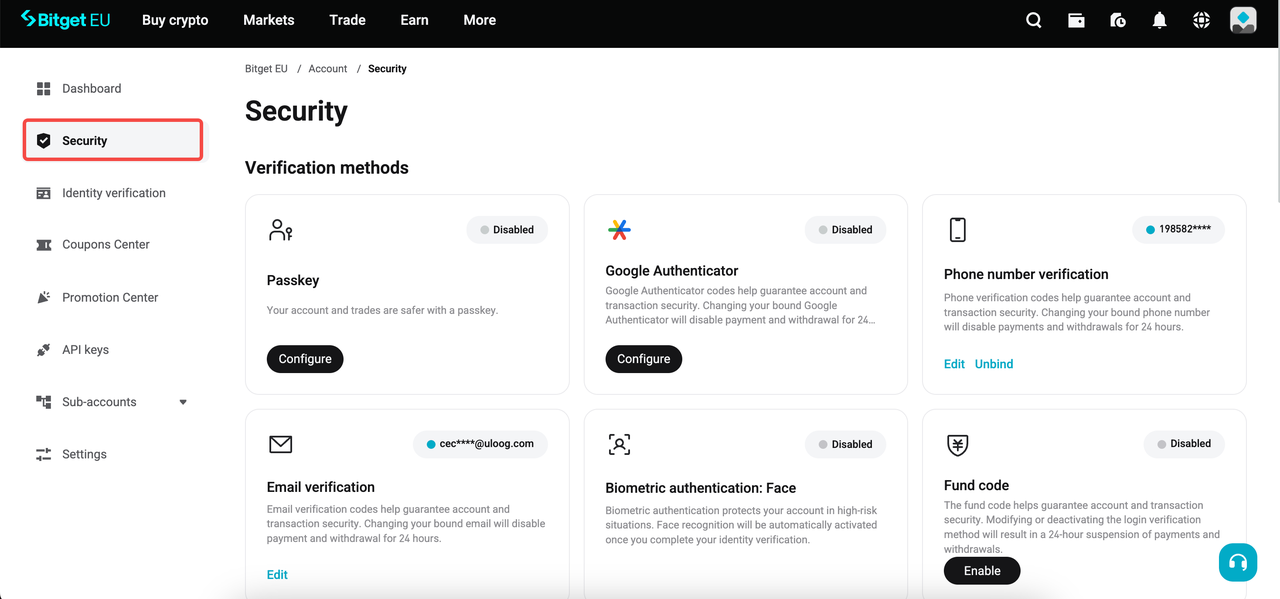
Step 1: Access Your Security Settings
Ensure you are securely logged into your Bitget EU account. Navigate to your user dashboard and select the
Security Settings page.
Step 2: Initiate Google Authenticator Configuration
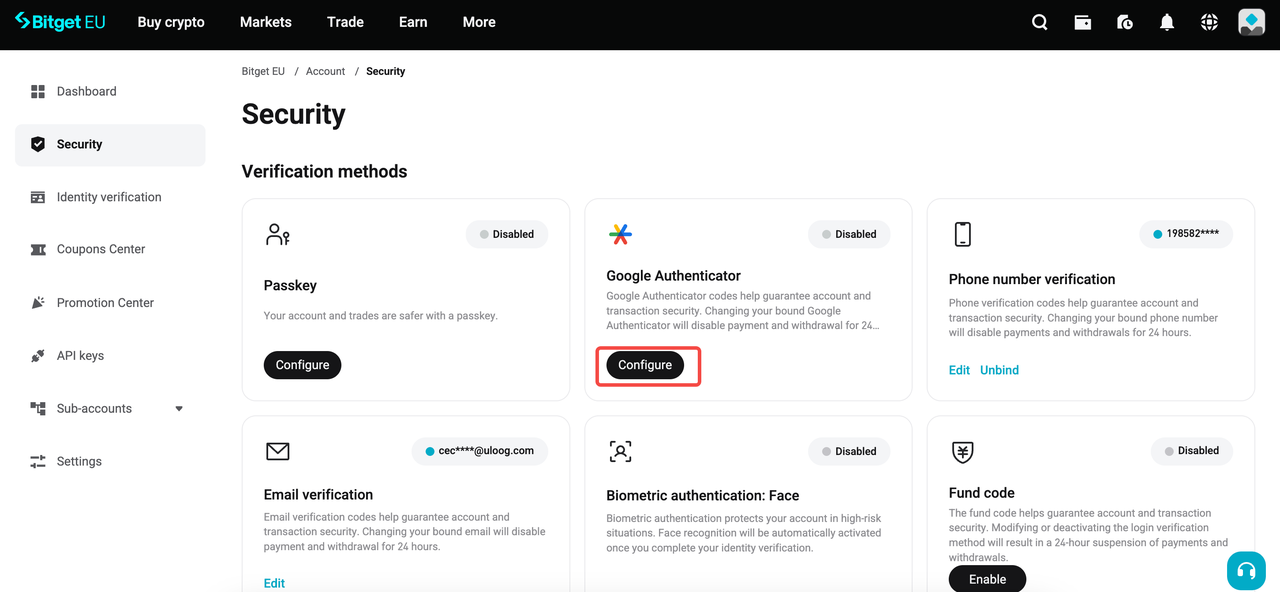
Locate the
Google Authenticator section on the screen. Click on the
[Configure] button in the
Google Authenticator
box.
Step 3: Download the Google Authenticator App
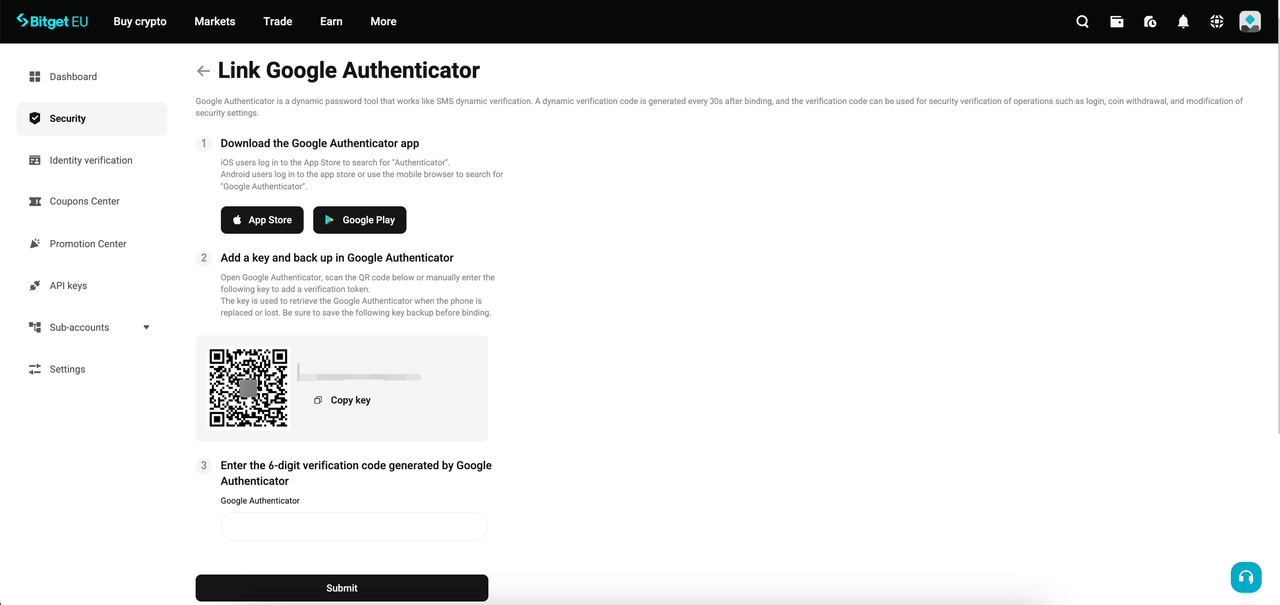
If you do not already have the application installed on your mobile device, you can download Google Authenticator from the Apple App Store (iOS) or the Google Play Store (Android). You may also scan the official download QR code provided on the Bitget EU configuration screen. Once installed, launch the application.
Step 4: Add Bitget EU to the Authenticator App
-
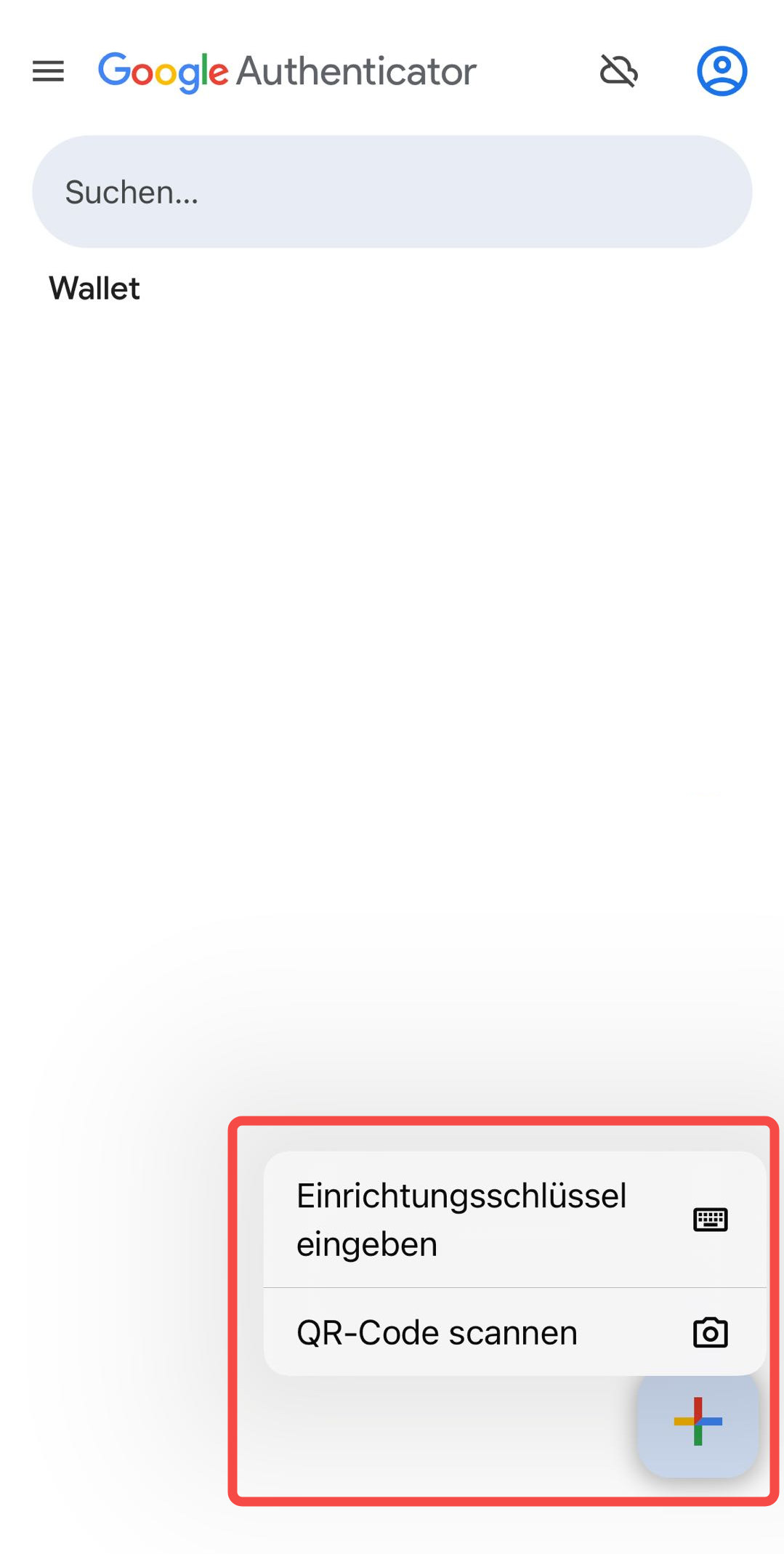
For First-Time Users: Upon opening the app, you will immediately see an [Add a code] button on the home screen. Tap it to proceed.
-
For Existing Users: If you already use the app for other accounts, tap the [+] (plus) icon located in the bottom right corner of the screen.
Next, choose either
[Scan a QR code] or
[Enter a setup key] based on your preferred binding method (detailed in Step 5).
Step 5: Bind Your Account
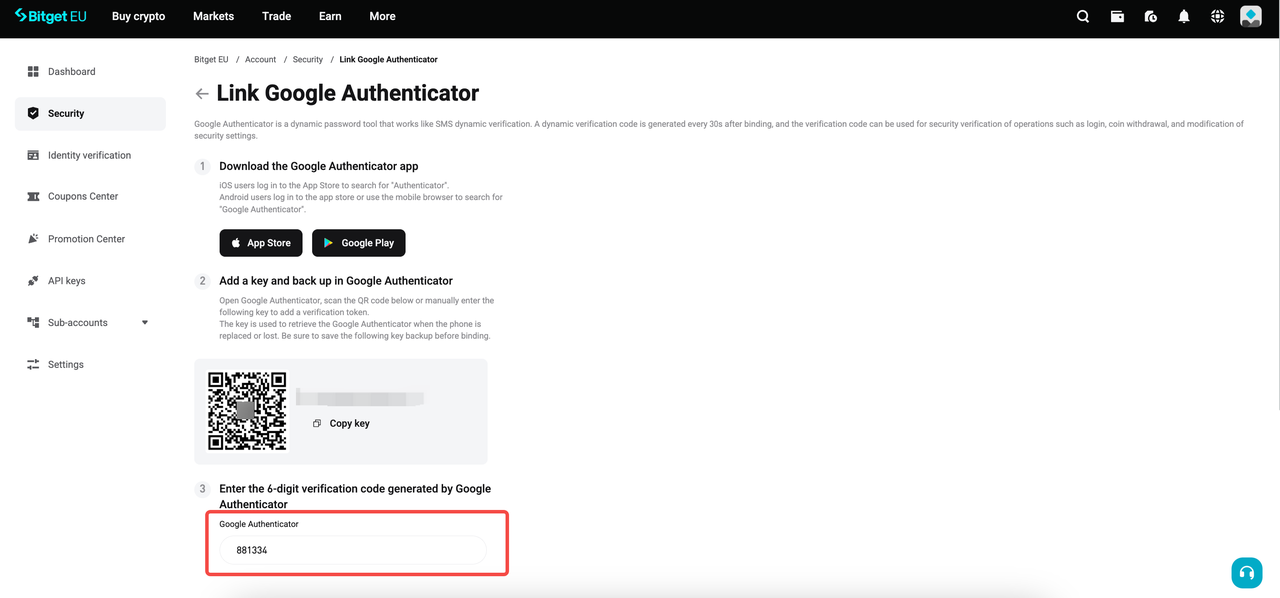
Since you are configuring this via the Bitget EU desktop website, selecting
[Scan a QR code] in your mobile app is the most efficient method. Point your smartphone camera at the QR code displayed on your desktop screen. Alternatively, you can copy the provided 16-digit alphanumeric setup key from the website and paste it manually into the app.
Once synchronised successfully, a new entry for Bitget EU will appear in your Google Authenticator app, displaying your registered email address and the binding date. You will also notice a blue, circular timer next to the 6-digit one-time password (OTP). This code refreshes every 30 seconds to prevent replay attacks.
|
⚠️ CRITICAL SECURITY NOTICE: Back Up Your Setup Key
Before proceeding, write down your alphanumeric setup key and store it in a secure, offline location. If your mobile device is ever lost, stolen, or damaged, this backup key is the only way to independently restore your 2FA codes on a new device. Without it, the account recovery process is complex and time-consuming.
|
Step 6: Verify and Confirm Your Setup
To finalise the synchronisation, enter the 6-digit code generated by your Google Authenticator app into the designated field on the Bitget EU website.
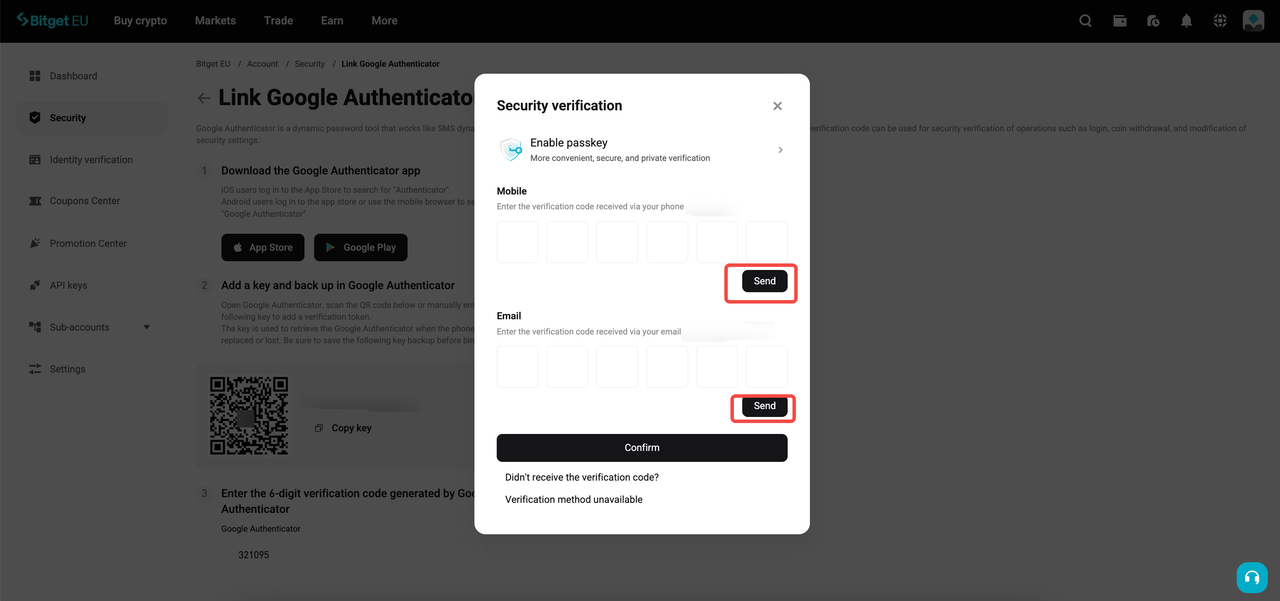
Next, complete an email verification step to prove authorisation. Click
[Send] to receive an authentication code via your registered email. Enter this code into the corresponding field on the website and click
[Confirm].
Note
: The email verification code expires after 10 minutes.
Step 7: Setup Complete
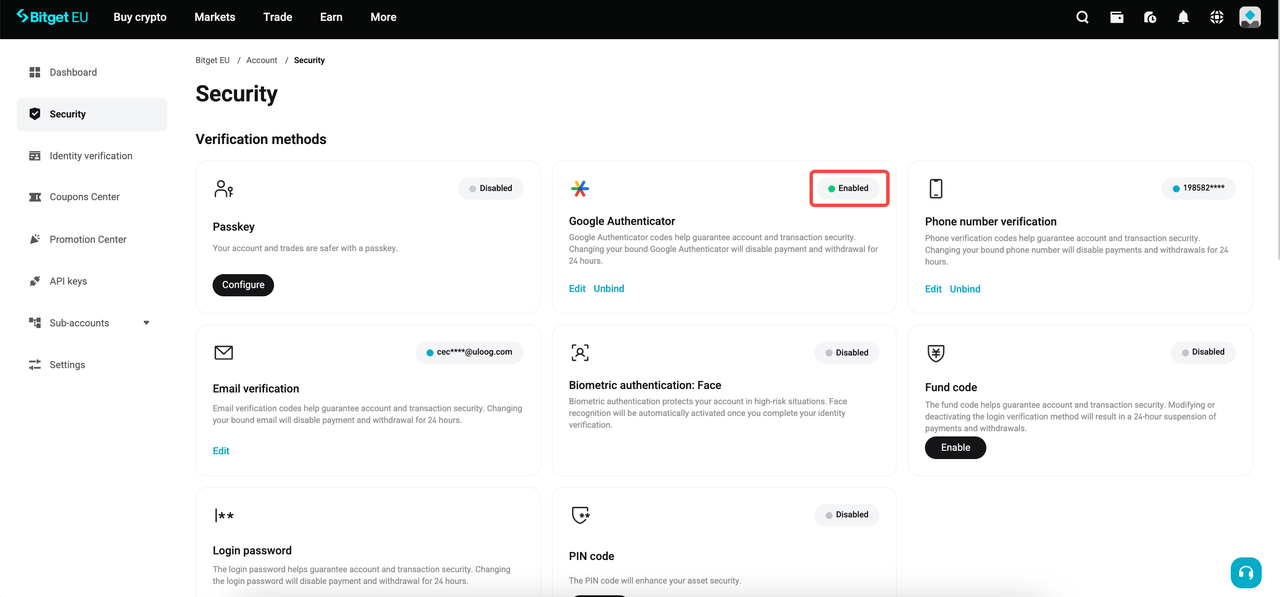
Congratulations, Google Authenticator is now active on your Bitget EU account.
You will see its status updated to "
Enabled" in your Security Settings. Moving forward, the system will ask for your 6-digit Google Authenticator code when you log in, authorise asset withdrawals, or modify sensitive account settings.
Conclusion: Trade with Confidence on a Secure Platform
Taking a few minutes to set up two-factor authentication (2FA) is an important step you can take to protect your digital assets. As a Regulated Crypto-Asset Service Provider (CASP) in the EU, Bitget EU operates within a compliant regulatory framework.
However, account security is a shared responsibility. By enabling 2FA for your crypto account in the EU, you help reduce the risk of unauthorized access and keep your portfolio under your control. With Google Authenticator active on your account, you can explore the cryptocurrency markets and execute your trading strategies.
The opinions expressed in this article are for informational purposes only. This article does not constitute an endorsement of any of the products and services discussed or investment, financial, or trading advice. Qualified professionals should be consulted prior to making financial decisions.
Share


Content
- Account Security: The Bedrock of Safe Trading
- Understanding Two-Factor Authentication (2FA)
- Why Use Google Authenticator?
- Step-by-Step Guide: How to Set Up Two-Factor Authentication (2FA) on Bitget EU
- Conclusion: Trade with Confidence on a Secure Platform
Recommended
 The Uncensored Guide on How to Spot Trade on Bitget EU2026-05-22 | 5m
 Bitget EU VIP Premier Wealth Hub Introduction2026-05-25 | 5m
 How to Buy Crypto With a Credit/Debit Card on Bitget EU2026-05-22 | 5m
Up to 6200 USDC and LALIGA merch await new users!
Claim